This is the setting (APN setting) for a SIM-free smartphone to communicate on the Y!mobile network.
Depending on the model you are using, the APN may be set automatically.
If you are unable to communicate, please set the APN following the steps below.
- *App icons, locations, menu names, etc. may vary depending on the model.
-
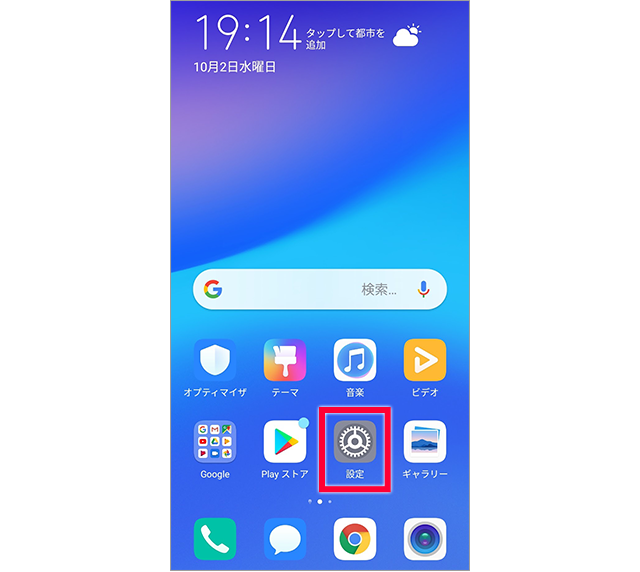
Tap "Settings"
-
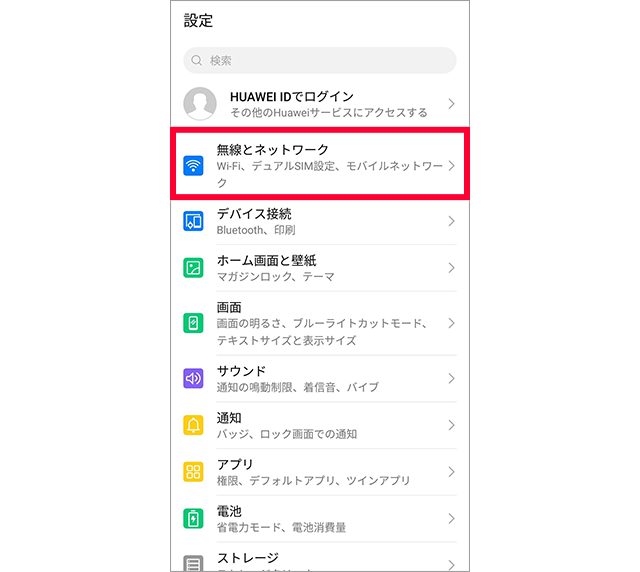
Tap "Wireless and networks *"
* The display may differ depending on the model. Display "Access Point Names" in the Settings app as shown in step 4, then proceed to step 5.
-
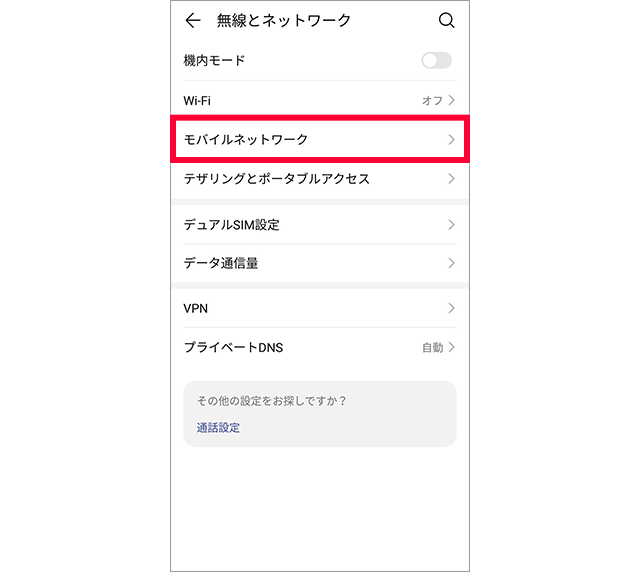
Tap "Mobile networks"
-
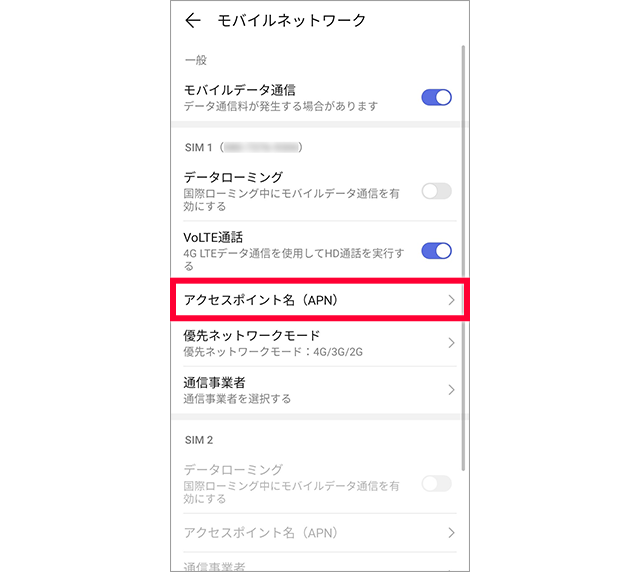
Tap "Access Point Name (APN)"
-
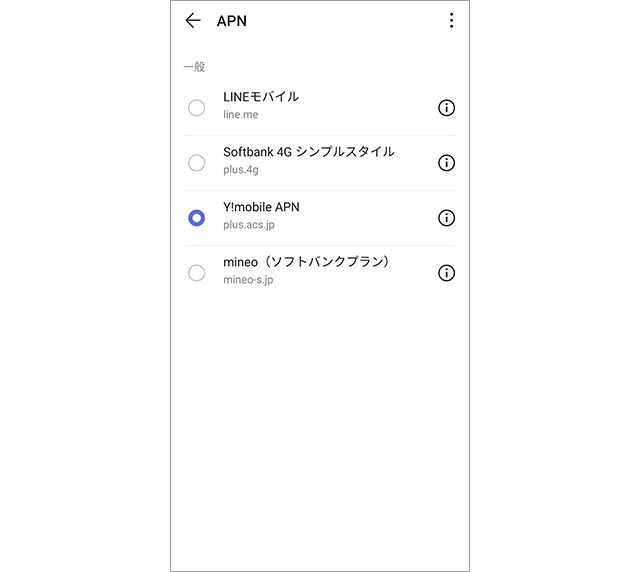
If automatically configured
Check whether communication is possible using an Internet browser, etc.
→ 10 fart
-
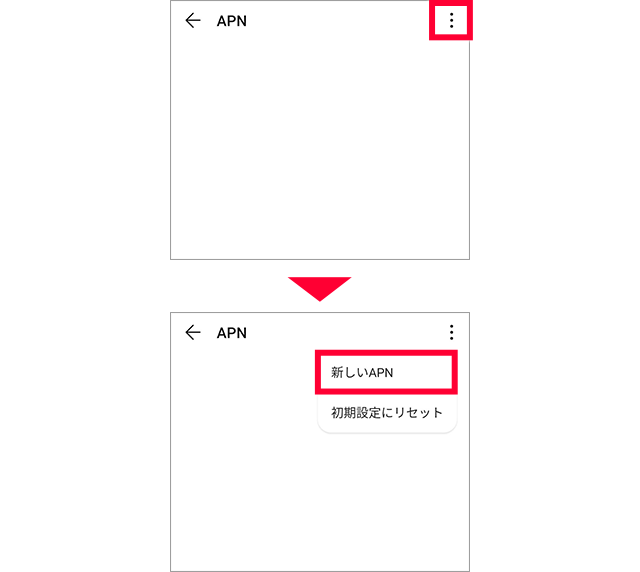
If APN is not set (create a new APN)
If you have not set an APN yet, or if you cannot communicate with the automatically set APN, tap "New APN" from "︙"
*The display may differ depending on the model. For example, "+" display.
-
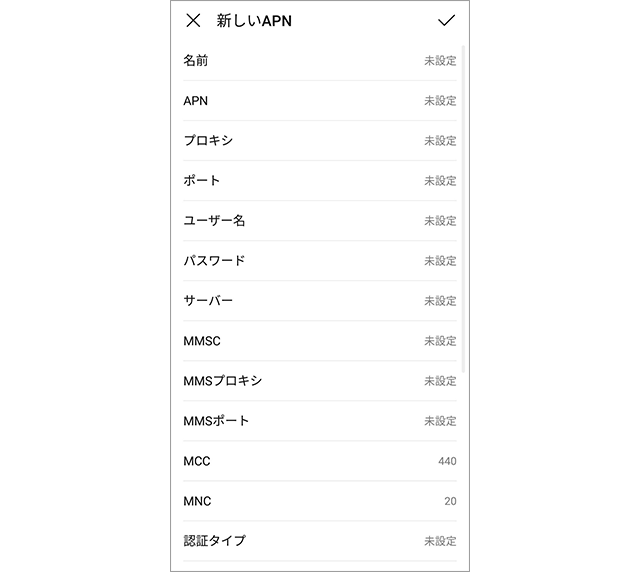
Confirm that "New APN" is displayed
-
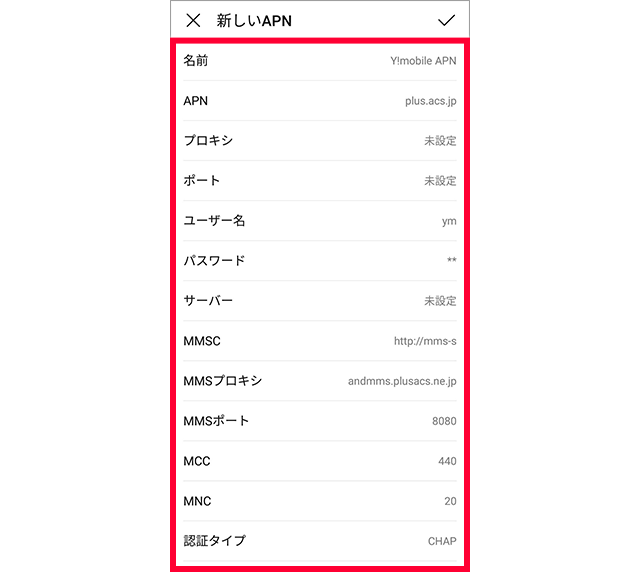
Enter the list of settings
-
List of settings
Please be careful not to make any mistakes, such as using periods (.) or commas (,).
* We recommend that you use copy and paste when using this function.
| name | Y!mobile APN ※ |
|---|
| APN | plus.acs.jp.v6 |
|---|
| Username | ym |
|---|
| password | ym |
|---|
| MCC | 440 |
|---|
| MNC | 20 |
|---|
| Authentication Type | CHAP |
|---|
| MMSC | http://mms-s |
|---|
| MMS Proxy | andmms.plusacs.ne.jp |
|---|
| MMS Port | 8080 |
|---|
| APN Type | default,ia,mms,supl,hipri |
|---|
* This is the name that will be displayed in the APN list. You can change it to any name.
-
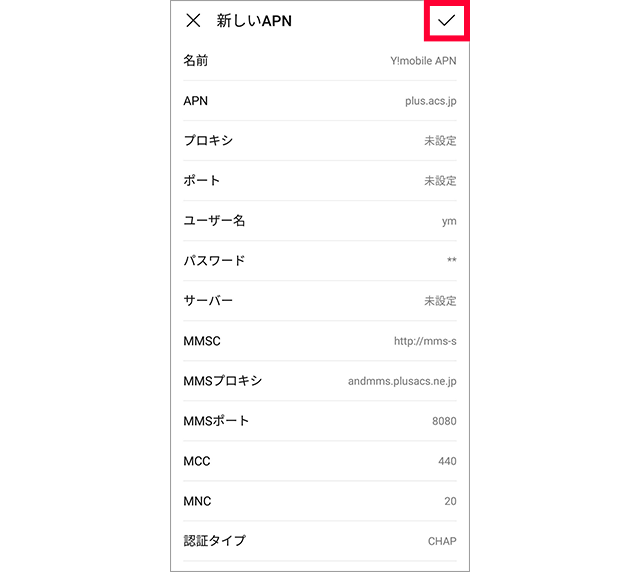
Tap ☑ to save the content
-
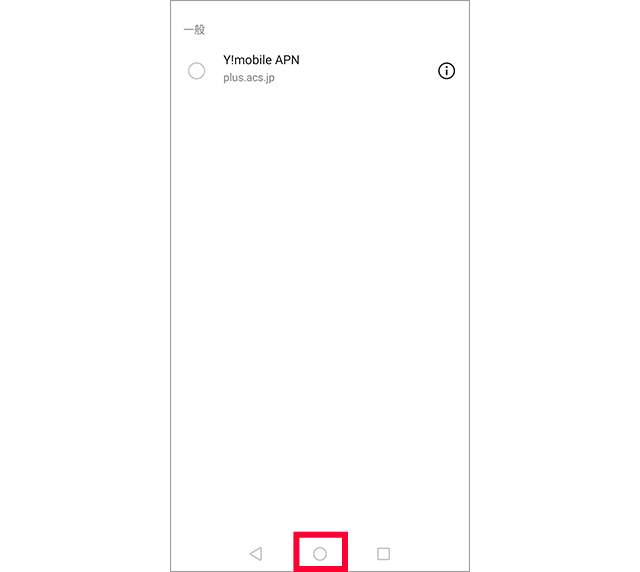
You will be returned to the APN list, so select the newly created setting and return to the home screen
*Depending on the device, you may be able to tap "Back" to set it.
-
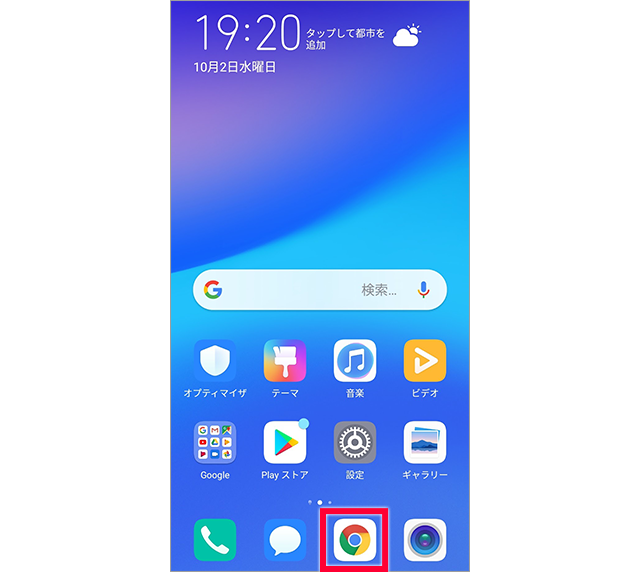
Check that you can tap using a browser such as Chrome.