Initial settings after application

Required setting steps

Y!mobile line communication settings(SIM-free iPhone)

Setting up communication for Y!mobile line

In principle, no settings are required if you update iOS to the latest version.

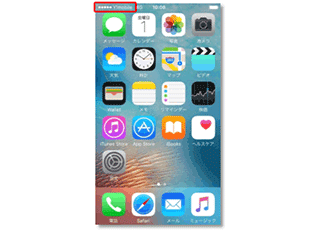
If the pictogram shows "Y!mobile" with Wi-Fi turned off, the process is complete. Please proceed to the next step.

If communication settings cannot be made for some reason

Connect to Wi-Fi,Please update your iOS to the latest version.
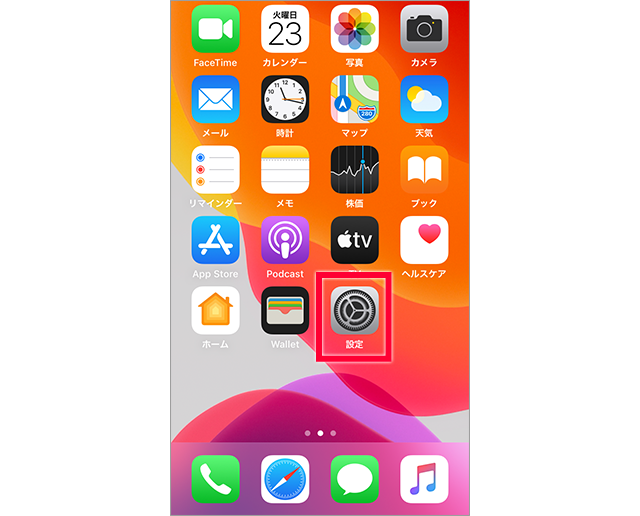
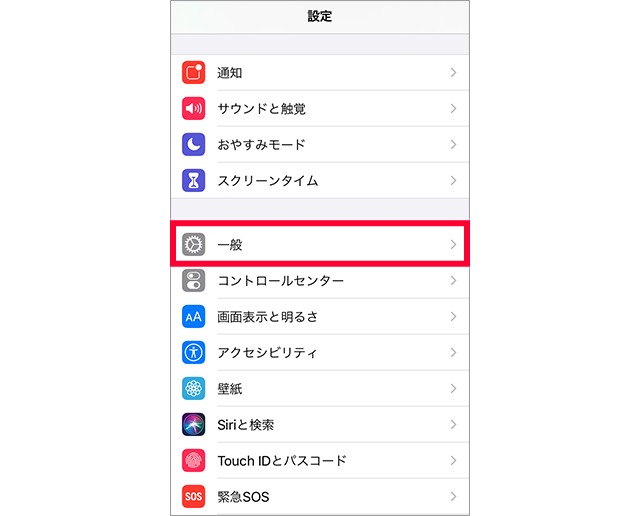
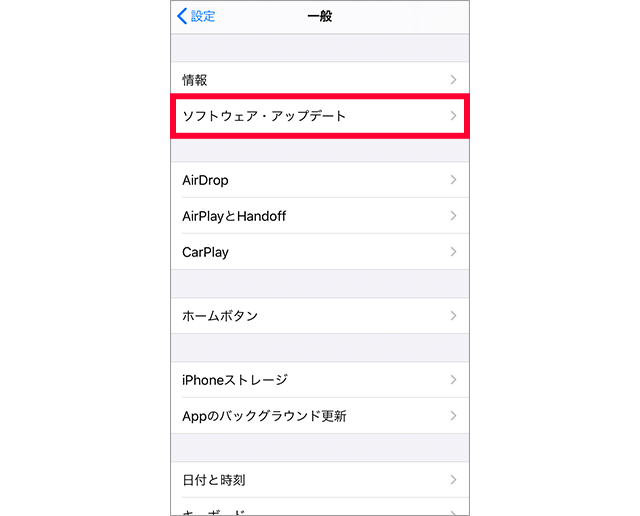
You can update by going to Settings > General > Software Update.

How to update iOS

If you have switched from another company and have installed an APN configuration profile from that company, please refer to the following to delete it. How to delete an APN configuration profile How to delete an APN configuration profile

We will configure SIM-free, SIM-unlocked iPhone, and SoftBank certified used iPhone sold by Y!mobile certified used items to communicate over Y!mobile network.
The setup method varies depending on iPhone model and version, so please follow the respective steps.

  • If you are using a SIM-free iPhone
  • If you are using a SIM-free iPad

To delete an APN configuration profile:

  • [1] Please make sure that iPhone you are setting up is a SIM-free or unlocked model.
  • [2] If you have installed an APN configuration profile from another company, please delete that profile first.

    If a profile from another company is set, Y!mobile profile cannot be installed.
    Be sure to delete any other company profiles beforehand.

    How to delete an APN configuration profile

    When you delete an APN configuration profile, any emails or notes associated with the profile will also be deleted.
    If you have any data you need, please back it up before proceeding.

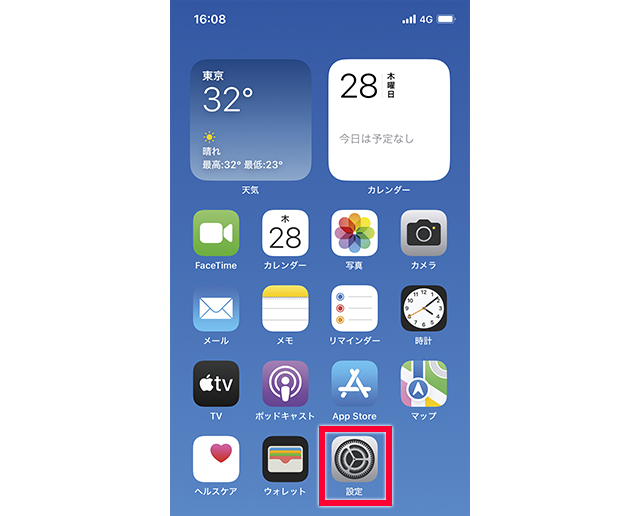
    1. Tap "Settings"

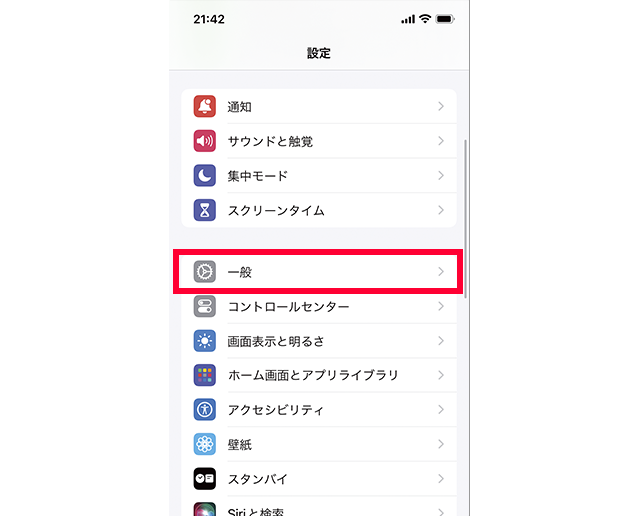
    2. Tap "General"

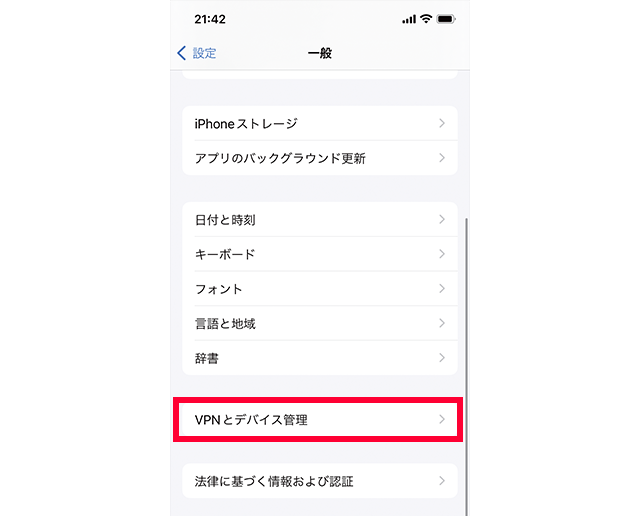
    3. Tap "VPN and Device Management"

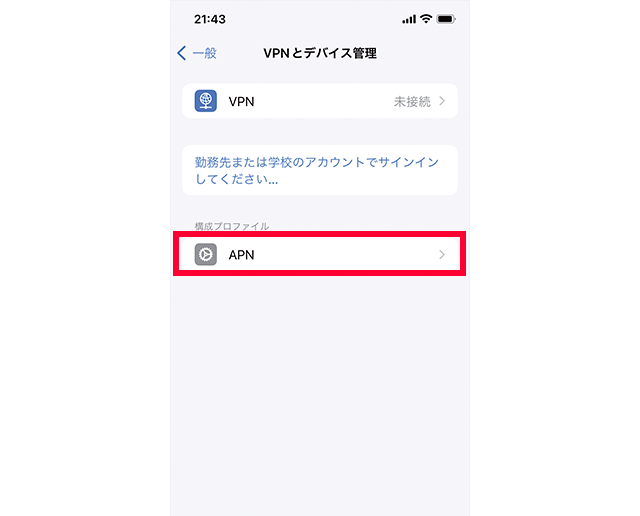
    4. Check the profile of the other company's SIM and tap

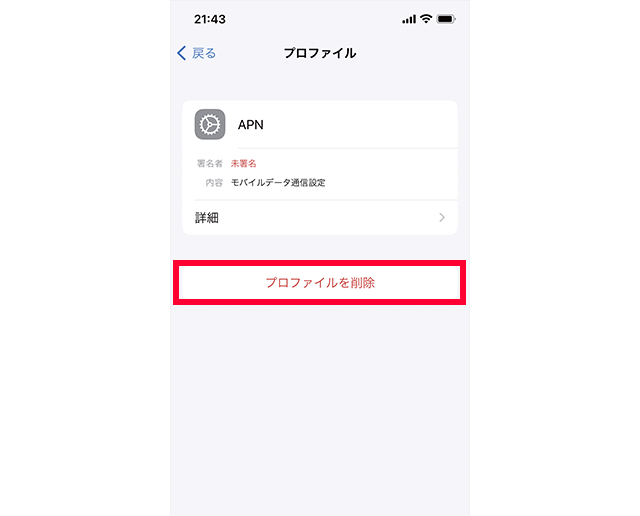
    5. The profile screen will be displayed, so tap "Delete profile"

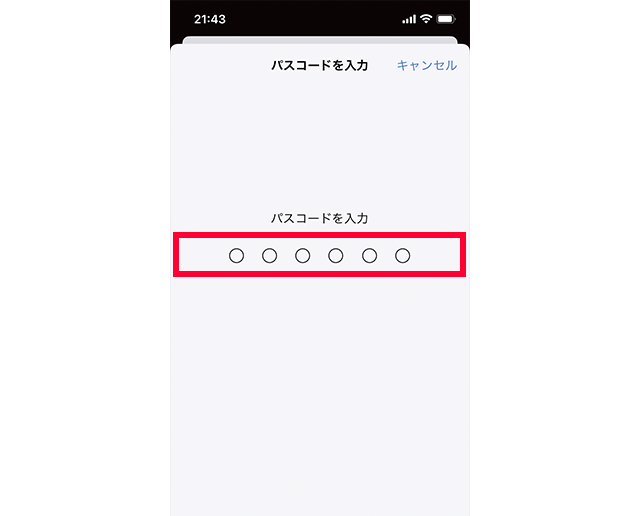
    6. If you are asked for a passcode, follow the on-screen instructions to enter the passcode.

      *A passcode is usually a six-digit number used to unlock the lock set by the customer.

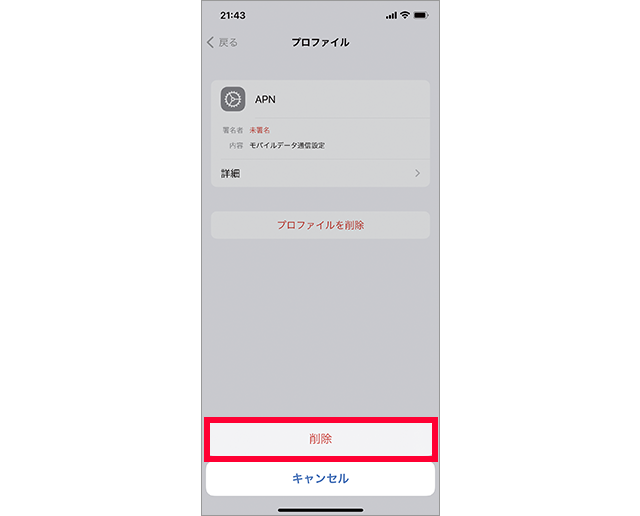
    7. Tap "Delete"

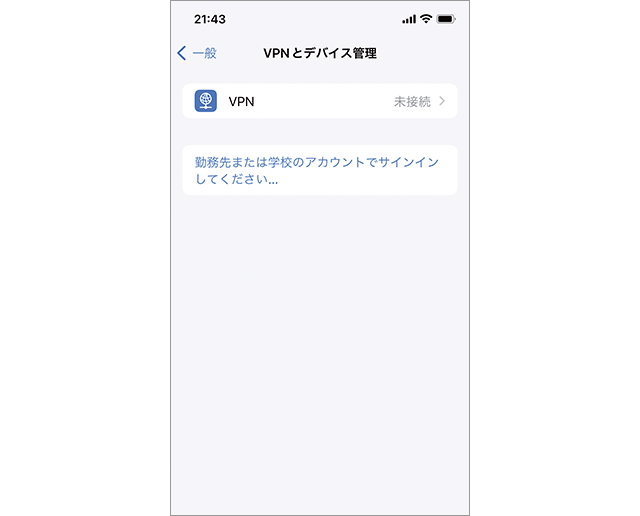
    8. The profile has been deleted.

    Close

  • [3] Connect to Wi-Fi and begin setup.

Update iOS to the latest version

Connect to Wi-Fi,Please make the following settings.

  1. Tap "Settings"

  2. Tap "General"

  3. Tap "Software Update"
    (Please follow the instructions on the screen.)

  4. Once the update is complete, turn off the Wi-Fi connection. If the pictogram shows "Y!mobile", the update is complete. Please proceed to the next step.

If you are unable to use communications even after updating your OS to the latest version (Y!mobile icon is not displayed)

Please make the following settings.

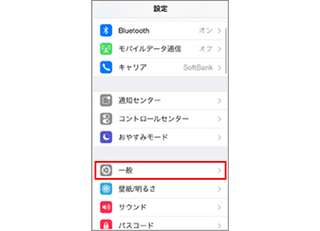
  1. Tap "Settings"

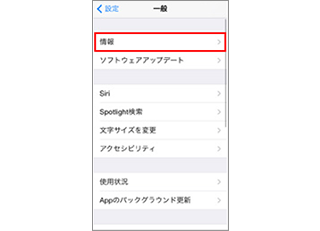
  2. Tap "General"

  3. Tap "Info"

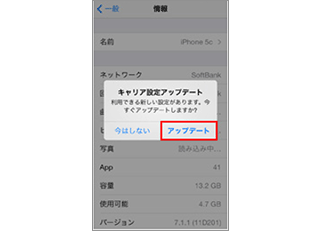
  4. When the "Carrier Settings Update" pop-up appears, tap "Update"

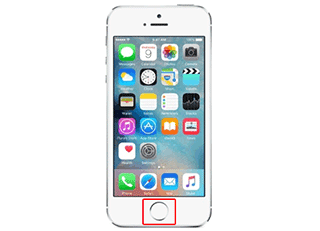
  5. Select the Home button

  6. If the pictogram shows "Y!mobile", the process is complete. Please proceed to the next step.

If the default line setting screen is displayed

Please make the following settings.

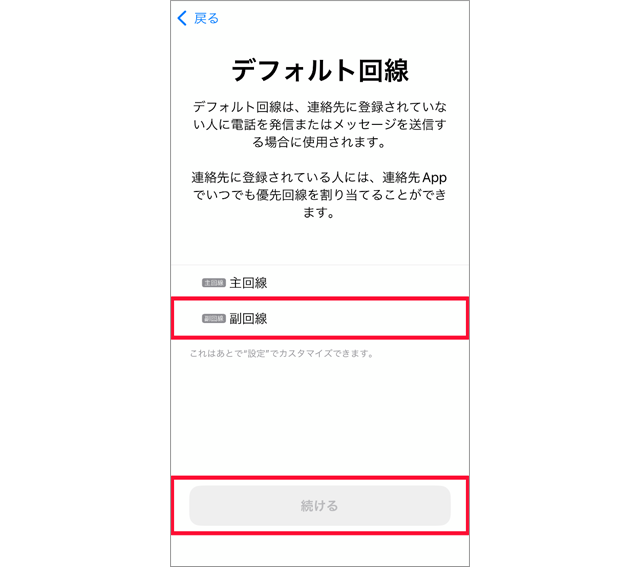
  1. Set the line to be used for calls and messages (SMS). Select "Secondary Line" and tap "Continue".

    *Here, the name of the added Y!mobile Mobile mobile communication plan will be explained as "secondary line."

    *The name may differ depending on your environment.

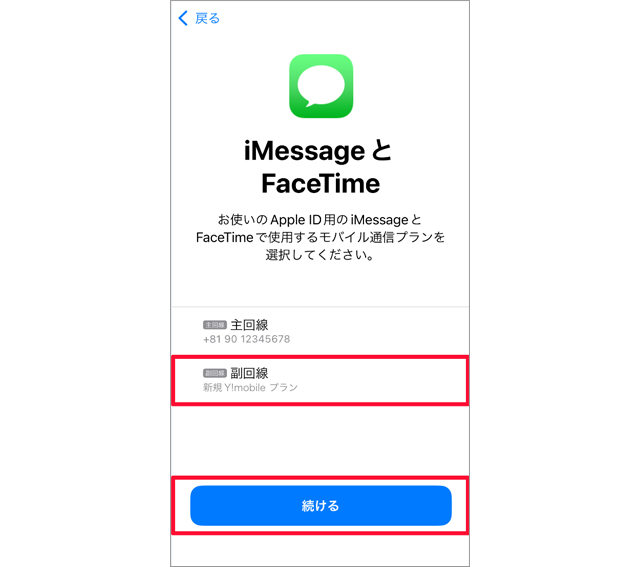
  2. Set up the line you want to use for iMessage and FaceTime. Select "Second Line" and tap "Continue."

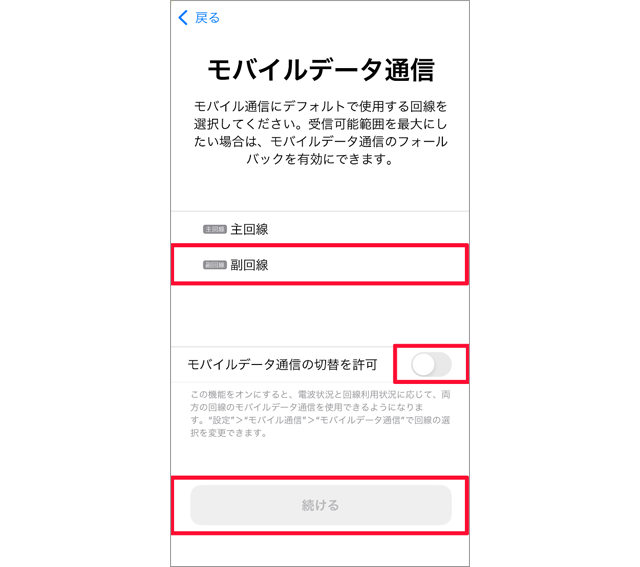
  3. Set the line to be used for Internet connection. Select "Secondary Line" and tap "Continue".
    Also, if you want to use the "primary" SIM for mobile data communication when the signal is poor, turn on the "Allow mobile data switching" switch.

To delete an APN configuration profile:

<Advance preparations>

  • [1] Please make sure that the iPad you are setting up is a SIM-free or SIM-unlocked version.
  • [2] If you have installed an APN configuration profile from another company, please delete that profile first.
    How to delete an APN configuration profile

    If a profile from another company is set, Y!mobile profile cannot be installed.
    Be sure to delete any other company profiles beforehand.

    When you delete an APN configuration profile, any emails or notes associated with the profile will also be deleted.
    If you have any data you need, please back it up before proceeding.

    1. Tap "Settings"

    2. Tap "General"

    3. Tap "Profile"

    4. Check the profile of the other company's SIM and tap

    5. The profile screen will be displayed, so tap "Delete profile"

    6. If you are asked for a passcode, follow the on-screen instructions to enter the passcode.

    7. Tap "Delete"

    8. The profile has been deleted.

    Close

  • [3] Connect to Wi-Fi and begin setup.

For iPads that support iPadOS 18.2 or later

  1. Update iOS to the latest version

    Settings > General > Software Update
    (Please follow the instructions on the screen.)

  2. Update your carrier settings to version 61.1 or later

    Go to Settings > General > About and tap "Update" when you see the "Carrier Settings Update" pop-up.

For iPads other than those listed above, please set the following:

The APN is set by installing a dedicated profile.

  1. Configuration Profile
    The download page is here

    Connect to Wi-Fi and scan the QR code using your iPad's camera or a QR code reader.

    *You can read the QR code using the camera function.

  2. Tap "Configuration profile for APN settings"

  3. Tap "Allow"

    *After tapping, if device selection is displayed, select "iPad."

  4. Tap "Close"

    *Depending on the version of iPadOS, 4and 5 may not be displayed.

  5. Return to the home screen and tap "Settings" and then "Profile Downloaded."

    If you don't see "Profile Downloaded," go to Settings > General > Profiles > APN.

  6. Tap "Install"

  7. If you are asked for a passcode, follow the on-screen instructions to enter the passcode.

    *A passcode is usually a 6-digit number set by the customer and used for unlocking the device, etc.

  8. Tap "Install"

  9. Tap "Done" to complete the setup.

    *If "4G" or "5G" is not displayed even after completing the settings, try turning airplane mode on and then off.

Were you able to set up and register?

Done

I couldn't

Return to Home